Windows parental controls for the family PCs your kids actually use.
FamilyProtect is tamper-resistant parental controls for PC, built for Windows 10 and Windows 11: filtered browsing, DNS protection, plain-language block reports, and self-healing protection for every family PC.
Why Windows needs more
Account settings and browser extensions are easy to outgrow
Kids use more than one browser
A filter that only works in one browser leaves obvious gaps when another browser, portable app, or DNS setting is available.
Windows is flexible by design
That flexibility is useful for adults, but it gives curious kids more places to look for workarounds.
Parents need enforcement
FamilyProtect is built to enforce the protections you choose, not just report that a rule was bypassed.
The two that actually matter
What does a child on Windows actually do to get around a filter?
In practice it is two things, and neither takes any real skill. Both are the reason browser-level parental controls stop working after a week.
They open a different browser
A filter installed as a Chrome extension governs Chrome. Edge is already on the machine, Firefox is a two-minute download, and a portable browser runs from a USB stick without installing anything. FamilyProtect filters beneath all of them, so the browser a child picks stops being the deciding factor.
More on this pattern: the second-browser problem.
They turn on encrypted DNS
Encrypted DNS (DoH) is a checkbox in modern browsers, and it is the usual way filtering gets sidestepped on Windows because the lookups stop going where the filter can see them. FamilyProtect blocks the endpoints it knows about and records the attempt in your dashboard, so it shows up as a signal instead of passing silently. VPN and anonymiser services are a blocked category for the same reason.
More on this: when kids try to bypass web filters.
What FamilyProtect adds
Device-level protection for family Windows PCs
Web content filtering
Block adult and harmful sites at the DNS layer, across the whole device, under every browser and app, so protection is not limited to one browser a child can swap out.
See what got blocked
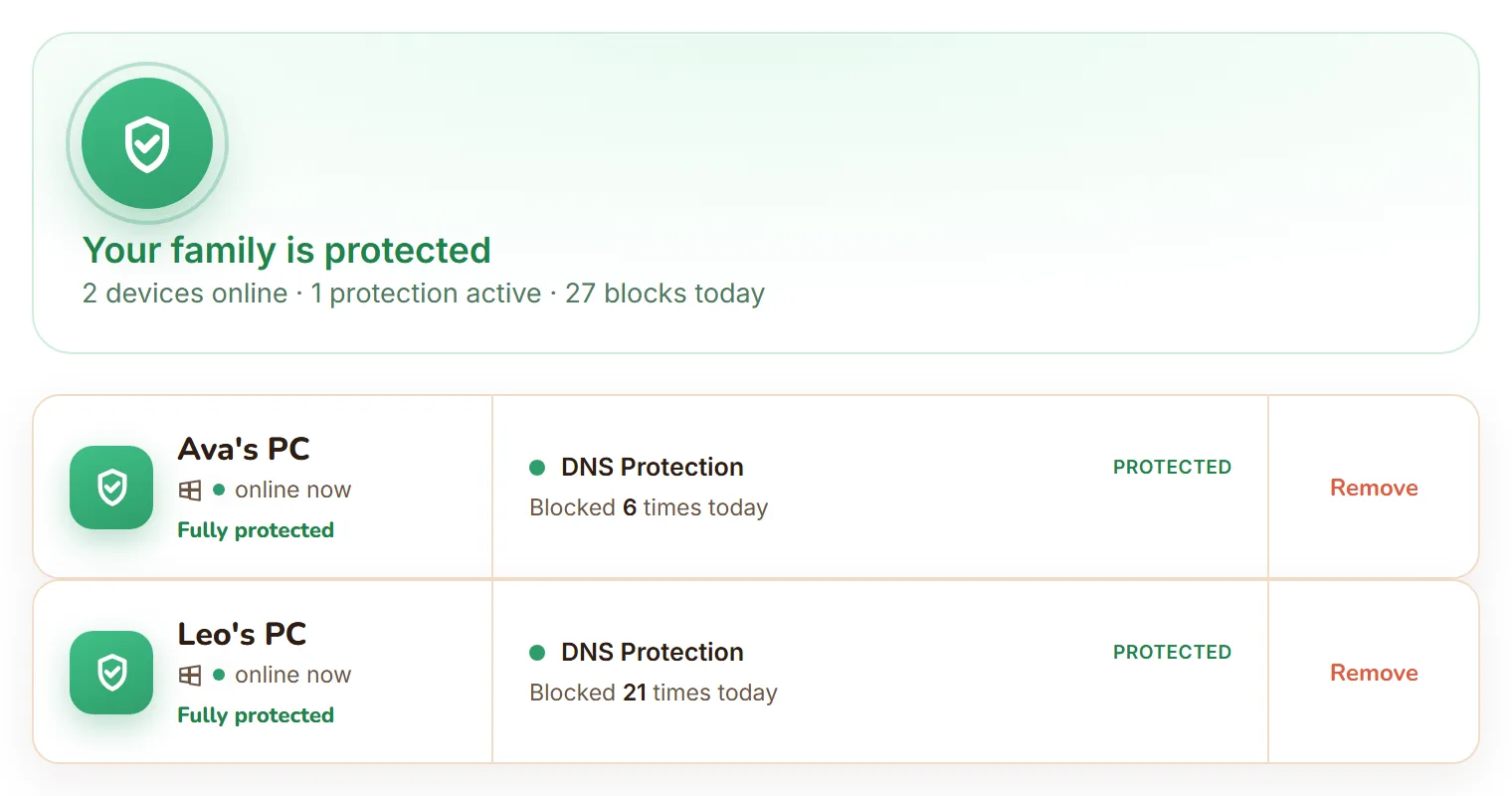
Your dashboard shows what was blocked on each PC, sorted into Serious, Keep an eye on, and Filtered quietly, so you notice what matters and skip the noise.
Tamper-resistant and self-healing
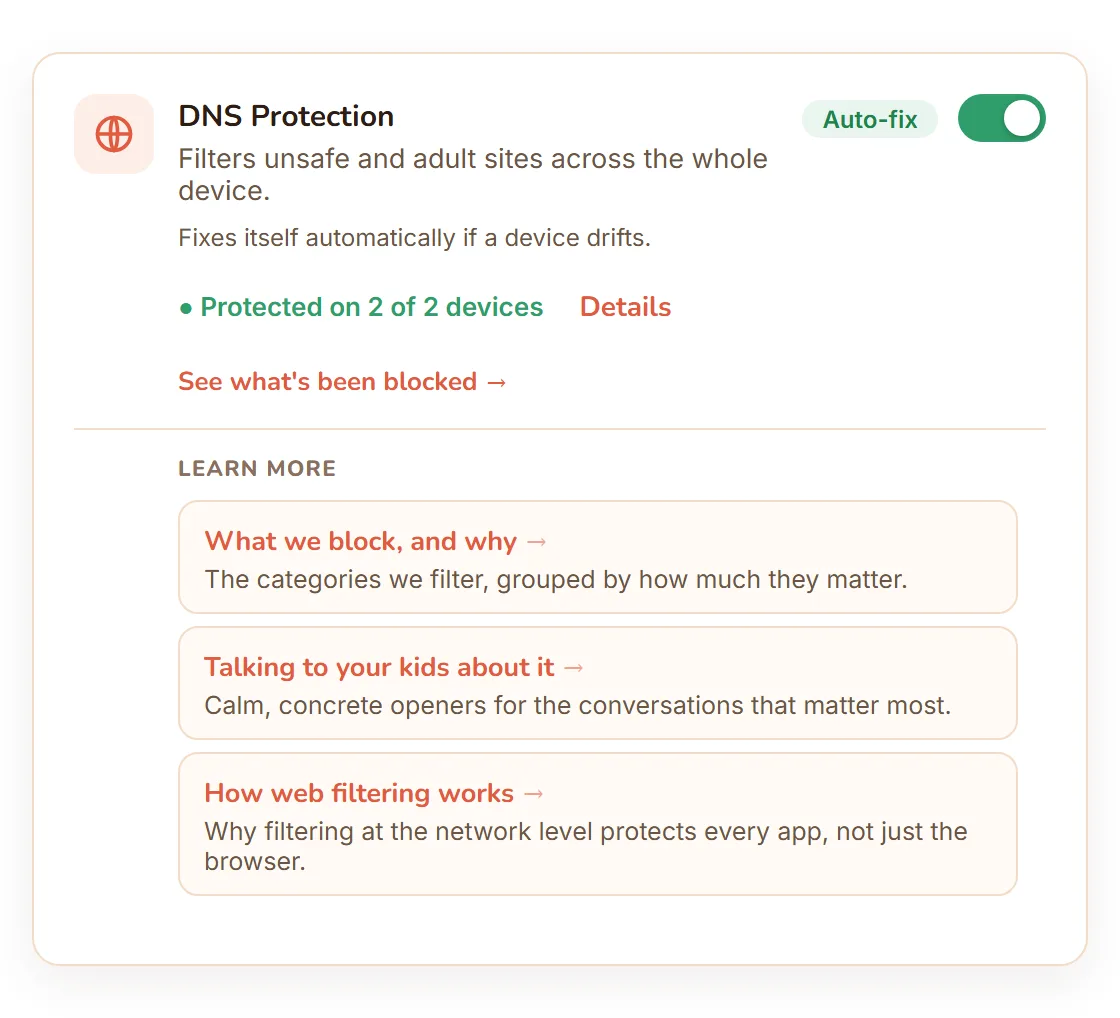
Protection runs as the system, not the child account, and repairs itself when a setting drifts.
Yours to control, not covert
You decide what is switched on. FamilyProtect does not read messages, keystrokes, photos, or microphone.
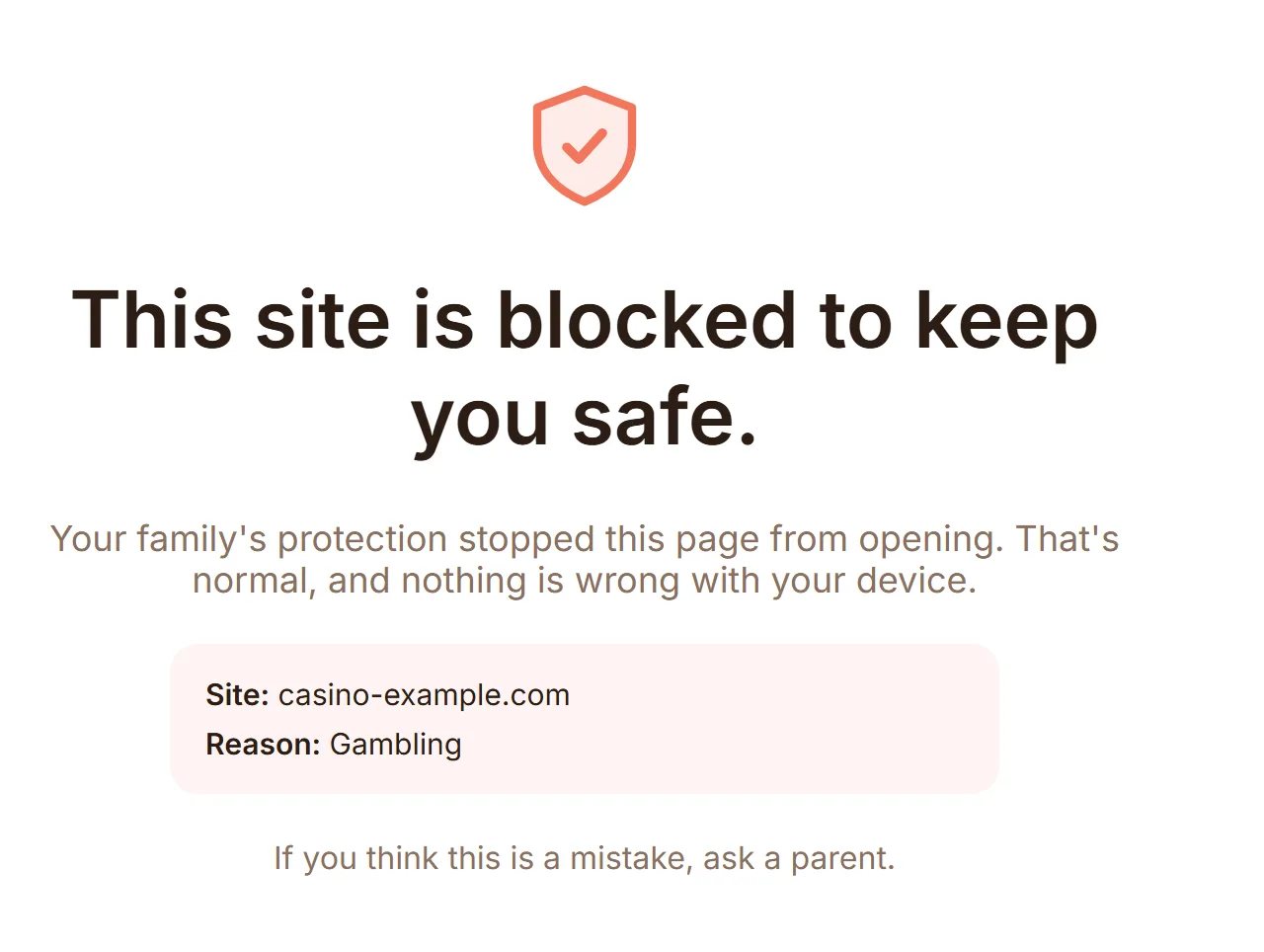
Blocked before it loads
On a Windows PC, a blocked site never gets the chance to load, no matter which browser or app tried to reach it. Your child sees a clean block page rather than a broken tab, so there is nothing confusing to troubleshoot. You can see exactly which categories are blocked and why.
Fixes itself if a device drifts
DNS Protection checks four independent conditions on every Windows PC, continuously. If one of them drifts, whether a child changed a setting or an update reset it, the PC repairs itself within minutes with no help-desk call and nothing for you to do. Your dashboard shows the true state per device, not a hopeful green tick.
Against the built-in option
How does this compare to Microsoft Family Safety?
Microsoft Family Safety is free and worth having for screen-time limits. Its web filtering works inside Microsoft Edge only, which is the difference that matters once a child has a second browser.
| Feature | Microsoft Family Safety | FamilyProtect |
|---|---|---|
| Where filtering applies | Microsoft Edge only | Every browser and app on the PC |
| Other browsers | Blocked by default, and has been bypassable | Filtered too, at the DNS layer |
| Known encrypted-DNS (DoH) endpoints | Not addressed | Blocked and logged as a bypass attempt |
| Tamper resistance | Account-level settings | Four continuous checks, self-heals in minutes |
| Parent reports | Screen-time and activity summary | Blocked-sites feed, three tiers, per child |
| Screen-time limits | Yes | No, we focus on content protection |
| Price | Free with a Microsoft account | $5.99/month, all family PCs |
Full breakdown: FamilyProtect vs Microsoft Family Safety, or see every comparison.
Honest scope
What FamilyProtect does not do on Windows
Worth knowing before you pay for it, because for some families one of these is the thing they actually wanted.
No screen-time limits
We do content protection, not time budgets. Microsoft Family Safety does screen time free, and plenty of families run both.
No monitoring of what they say
No message contents, keystrokes, photos, microphone, or social feeds. If a feature needs hidden monitoring, we leave it out. See our Privacy Policy.
No phones yet
Windows PCs today. There is no macOS, Linux, iPhone, or Android app.
Shared devices
Parental controls for a family PC
Many families do not have one PC per child. They have one desktop in the kitchen or the living room, and two or three kids sign in with their own standard Windows account. FamilyProtect protects that setup the same way: turn on DNS Protection once for the PC, and the filtering applies to the device itself, underneath every account that signs in, rather than to one profile you would have to configure again for the next child.
Worth knowing before you rely on it: protection is per device, not per child. Your dashboard shows what got blocked on the family PC and when, but on a machine with several accounts it cannot tell you which child was signed in at the time. A separate standard Windows account per child at least narrows it to whoever was signed in that day, and it keeps each child from switching off protection from their own account, but the report itself stays at the device level.
On the move
Parental controls for a laptop
A laptop does not stay on your home network. It goes to school, to a friend's house, to a grandparent's Wi-Fi, or online through a phone hotspot with no router of yours anywhere nearby. Filtering that lives on your home router only works while the laptop is joined to that router, so it stops the moment your child leaves the house.
FamilyProtect runs on the device itself, so it keeps working wherever the laptop connects, because it is the laptop doing the filtering, not the network it happens to be joined to. The same DNS Protection, the same blocked-sites feed, and the same self-healing checks apply on school Wi-Fi or a phone hotspot exactly as they do at home.
Setup guide
How to set up parental controls on a Windows PC
Setting up parental controls on Windows 11 or Windows 10 with FamilyProtect takes only a few minutes per PC, and the same steps work for every family PC.
1. Create your family account
Sign up and set up your family so you have one dashboard for every Windows PC. Getting started covers the whole first run.
2. Install FamilyProtect on each PC
Install FamilyProtect on every Windows PC your child uses. See the Windows install guide for step-by-step instructions.
3. Turn on DNS Protection
From your dashboard, turn on DNS Protection for the device. Read how DNS filtering works to see what it blocks and how.
4. Use a standard child account
Make sure your child signs in with a standard, non-administrator Windows account, so the protection cannot be switched off from that account. Our guide to a standard child account shows how without losing their files.
Questions
Windows parental controls, answered
Does Windows have built-in parental controls?
Yes. Microsoft Family Safety is free with a Microsoft account and covers screen time, activity summaries, and web filtering. The limitation is where the web filtering applies: it works inside Microsoft Edge only. To make that hold, turning on web filtering blocks other browsers by default, which is a blunt fix that breaks apps relying on a different browser engine. FamilyProtect filters below the browser instead, so every browser and app on the PC gets the same protection and nothing has to be blocked to achieve it.
Does FamilyProtect work on Windows 10 and Windows 11?
Both. The installer and the setup steps are the same on each, and one subscription covers every Windows PC in your family regardless of which version it runs.
Can my child get around it by installing a different browser?
No. Filtering happens at the DNS layer, beneath the browser, so Chrome, Firefox, Edge, a portable browser from a USB stick, or any other app all resolve names through the same filtered path. Switching browsers changes nothing, which is the specific failure that catches out browser extensions and Edge-only filtering.
What about encrypted DNS or a VPN?
Both are handled. Encrypted DNS (DoH) is the usual way a filter gets sidestepped on Windows, so it is blocked and recorded in your dashboard as a filter-bypass attempt rather than passing silently. VPN services are a blocked category in their own right, alongside the other tools whose purpose is getting around a filter, and a standard account cannot switch that off.
Does the filtering still work when the laptop leaves the house?
Yes. Protection lives on the PC, not on your router, so it travels with the laptop onto school networks, a friend's Wi-Fi, or a phone hotspot. Router-level filtering stops at your front door by design; that is the gap this closes.
Does FamilyProtect limit screen time on Windows?
No, and that is deliberate. FamilyProtect does content protection: what a PC can reach, enforced across every browser and app. Screen-time limits are a separate problem, and Microsoft Family Safety already does them free. Plenty of families run both.
Do I need a separate subscription for each Windows PC?
No. One flat plan covers every Windows PC in your family with no per-device fees, and every account starts with 14 days free.
What if my child's Windows account is an administrator?
Protection still installs, but an administrator account can interfere with it, so the tamper resistance is much weaker. Your child should sign in with a standard (non-administrator) Windows account. That single change is what stops filtering being disabled, DNS settings being edited, or the agent being uninstalled from that account. Our guide to setting up a standard child account walks through it without losing their files or settings.
Keep reading
More on protecting a Windows PC
- How DNS protection works on Windows, the mechanism in plain language.
- Why browser parental controls fail, the structural reason, not user error.
- How to block a website on Windows, including the ways that do not hold.
- Parental controls on Windows 11, a setup walkthrough.
- Blocked sites detail, the optional add-on for per-site history.
One plan, every family PC
Start with the PCs your family uses most.
14 days free, then $5.99/month for every Windows PC in your family. No per-device pricing, cancel anytime. See full pricing.